> ## Documentation Index
> Fetch the complete documentation index at: https://docs.baimoqilin.com/llms.txt
> Use this file to discover all available pages before exploring further.
# Tracking assets
> Use the asset tracking system to catalog, locate, and manage everything MineClawd creates in your world.
When MineClawd creates entities, items, scripts, or game mechanics in your world, the asset tracking system records them. You can browse, teleport to, give yourself, modify, or delete any tracked asset from the overlay or through commands.
## What gets tracked
MineClawd's LLM tools automatically catalog creations into five categories:
| Category | Examples |
| ----------------------- | -------------------------------------------------------------------------------------------------- |
| **Entities** | Summoned villagers, custom mobs, NPCs |
| **Items/Blocks/Fluids** | Dynamic items (with throwable support), custom blocks (with friction), runtime fluids (with color) |
| **Special Items** | Items with custom NBT data, enchanted tools |
| **Commands** | Registered custom commands, command scripts |
| **Game Mechanics** | Scheduled events, player-join listeners, area effects |
Each asset record stores a name, summary, the script path that created it, and category-specific metadata like entity UUID/location, content IDs, or NBT data.
## Browsing assets in the overlay
Open the overlay menu and click **Assets** to switch to the asset inventory view.
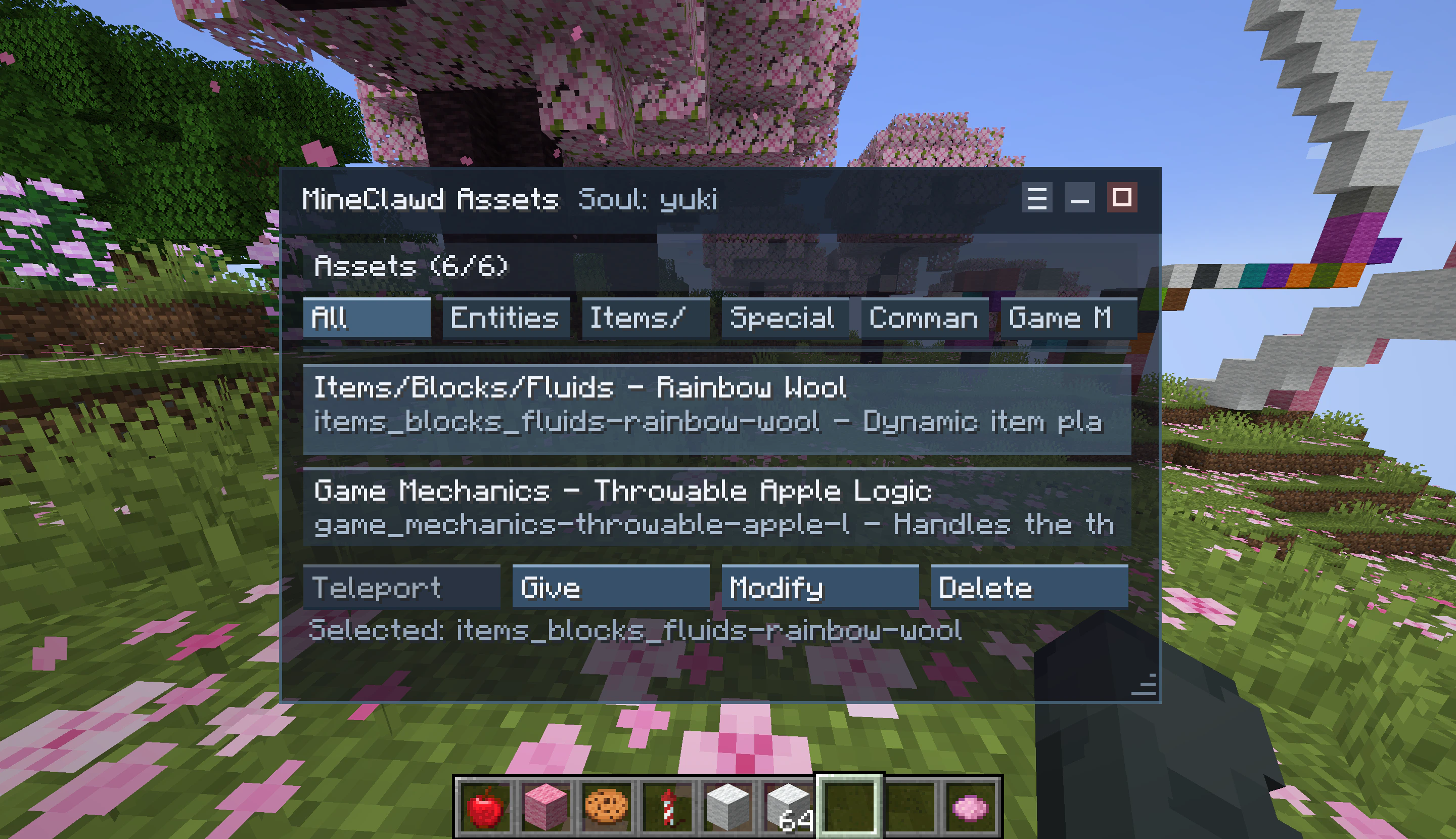 The view has two parts:
1. **Category tabs** across the top: **All**, **Entities**, **Items/Blocks/Fluids**, **Special Items**, **Commands**, and **Game Mechanics**. Click a tab to filter.
2. **Asset rows** below, each showing the asset name and summary. Click an asset to select it and reveal the action bar.
## Asset actions
When you select an asset, an action bar appears with context-sensitive buttons:
| Action | Available for | What it does |
| ------------ | --------------------------------------------------------------------------- | -------------------------------------------------------------------------------- |
| **Teleport** | Entities with a stored UUID and location | Teleports you to the entity's last known coordinates. |
| **Give** | Items/Blocks/Fluids with a content ID, Special Items with a special item ID | Gives you the item via command execution. |
| **Modify** | All categories | Opens a new session with a pre-filled prompt to modify the asset. |
| **Delete** | All categories | Opens a new session with a pre-filled prompt to remove the asset from the world. |
**Modify** and **Delete** start a new conversation with MineClawd rather than instantly changing the world. This lets MineClawd reason about dependencies and clean up scripts properly.
## Using commands
You can also manage assets from chat without the overlay.
### List all assets
```bash theme={null}
/mineclawd assets list
```
Shows all tracked asset records for the current owner.
### Teleport to an asset
```bash theme={null}
/mineclawd assets teleport
```
Teleports you to the entity's stored location. Only works for entity-type assets with a valid UUID and dimension.
### Give yourself an asset
```bash theme={null}
/mineclawd assets give
```
Gives you the item or block associated with the asset. Works for Items/Blocks/Fluids (by content ID) and Special Items (by special item ID and NBT).
### Remove an asset record
```bash theme={null}
/mineclawd assets remove-record
```
Deletes the asset record from storage. This does not remove the actual entity, item, or script from the world -- it only removes the tracking record.
Removing an asset record does not undo the creation. Use the **Delete** action in the overlay if you want MineClawd to also clean up the world.
## How tracking works behind the scenes
MineClawd uses three LLM tools to manage asset records during requests:
* `list-assets` -- retrieves all asset records for context.
* `upsert-asset-record` -- creates or updates an asset record with metadata.
* `remove-asset-record` -- deletes an asset record by ID.
The LLM receives an asset tracking prompt appendix in every request, so it knows to catalog its creations. You do not need to ask MineClawd to track assets -- it does so automatically when the system is enabled.
## Storage
Asset records are stored as JSON files per owner:
```text theme={null}
mineclawd/
assets/
.json
```
Each file contains an array of `AssetRecord` objects with fields like `id`, `category`, `name`, `summary`, `scriptPath`, and category-specific fields (`entityUuid`, `entityDimension`, `entityX/Y/Z`, `contentId`, `specialItemId`, `specialItemNbt`, `command`).
## Related pages
* [Using the GUI](/tutorials/using-the-gui)
* [Assets command](/commands/assets)
* [Technical details](/resources/technical-details)
The view has two parts:
1. **Category tabs** across the top: **All**, **Entities**, **Items/Blocks/Fluids**, **Special Items**, **Commands**, and **Game Mechanics**. Click a tab to filter.
2. **Asset rows** below, each showing the asset name and summary. Click an asset to select it and reveal the action bar.
## Asset actions
When you select an asset, an action bar appears with context-sensitive buttons:
| Action | Available for | What it does |
| ------------ | --------------------------------------------------------------------------- | -------------------------------------------------------------------------------- |
| **Teleport** | Entities with a stored UUID and location | Teleports you to the entity's last known coordinates. |
| **Give** | Items/Blocks/Fluids with a content ID, Special Items with a special item ID | Gives you the item via command execution. |
| **Modify** | All categories | Opens a new session with a pre-filled prompt to modify the asset. |
| **Delete** | All categories | Opens a new session with a pre-filled prompt to remove the asset from the world. |
**Modify** and **Delete** start a new conversation with MineClawd rather than instantly changing the world. This lets MineClawd reason about dependencies and clean up scripts properly.
## Using commands
You can also manage assets from chat without the overlay.
### List all assets
```bash theme={null}
/mineclawd assets list
```
Shows all tracked asset records for the current owner.
### Teleport to an asset
```bash theme={null}
/mineclawd assets teleport
```
Teleports you to the entity's stored location. Only works for entity-type assets with a valid UUID and dimension.
### Give yourself an asset
```bash theme={null}
/mineclawd assets give
```
Gives you the item or block associated with the asset. Works for Items/Blocks/Fluids (by content ID) and Special Items (by special item ID and NBT).
### Remove an asset record
```bash theme={null}
/mineclawd assets remove-record
```
Deletes the asset record from storage. This does not remove the actual entity, item, or script from the world -- it only removes the tracking record.
Removing an asset record does not undo the creation. Use the **Delete** action in the overlay if you want MineClawd to also clean up the world.
## How tracking works behind the scenes
MineClawd uses three LLM tools to manage asset records during requests:
* `list-assets` -- retrieves all asset records for context.
* `upsert-asset-record` -- creates or updates an asset record with metadata.
* `remove-asset-record` -- deletes an asset record by ID.
The LLM receives an asset tracking prompt appendix in every request, so it knows to catalog its creations. You do not need to ask MineClawd to track assets -- it does so automatically when the system is enabled.
## Storage
Asset records are stored as JSON files per owner:
```text theme={null}
mineclawd/
assets/
.json
```
Each file contains an array of `AssetRecord` objects with fields like `id`, `category`, `name`, `summary`, `scriptPath`, and category-specific fields (`entityUuid`, `entityDimension`, `entityX/Y/Z`, `contentId`, `specialItemId`, `specialItemNbt`, `command`).
## Related pages
* [Using the GUI](/tutorials/using-the-gui)
* [Assets command](/commands/assets)
* [Technical details](/resources/technical-details)