
When MineClawd creates entities, items, scripts, or game mechanics in your world, the asset tracking system records them. You can browse, teleport to, give yourself, modify, or delete any tracked asset from the overlay or through commands.

What gets tracked

MineClawd’s LLM tools automatically catalog creations into five categories:
CategoryExamples
EntitiesSummoned villagers, custom mobs, NPCs
Items/Blocks/FluidsDynamic items (with throwable support), custom blocks (with friction), runtime fluids (with color)
Special ItemsItems with custom NBT data, enchanted tools
CommandsRegistered custom commands, command scripts
Game MechanicsScheduled events, player-join listeners, area effects
Each asset record stores a name, summary, the script path that created it, and category-specific metadata like entity UUID/location, content IDs, or NBT data.

Browsing assets in the overlay

Open the overlay menu and click Assets to switch to the asset inventory view.
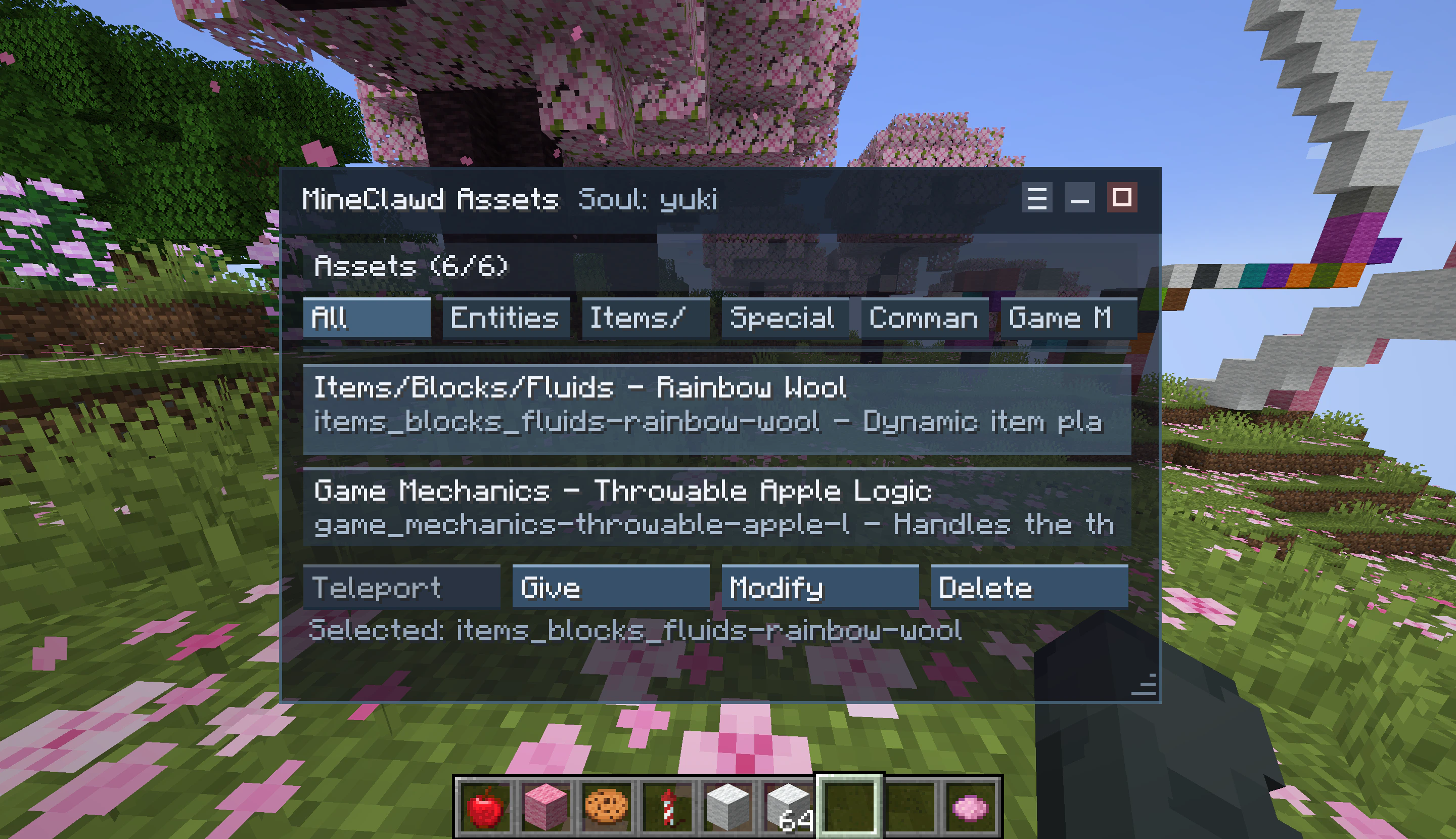
MineClawd Assets overlay showing categorized asset list with per-category filter tabs and action buttons
The view has two parts:
  1. Category tabs across the top: All, Entities, Items/Blocks/Fluids, Special Items, Commands, and Game Mechanics. Click a tab to filter.
  2. Asset rows below, each showing the asset name and summary. Click an asset to select it and reveal the action bar.

Asset actions

When you select an asset, an action bar appears with context-sensitive buttons:
ActionAvailable forWhat it does
TeleportEntities with a stored UUID and locationTeleports you to the entity’s last known coordinates.
GiveItems/Blocks/Fluids with a content ID, Special Items with a special item IDGives you the item via command execution.
ModifyAll categoriesOpens a new session with a pre-filled prompt to modify the asset.
DeleteAll categoriesOpens a new session with a pre-filled prompt to remove the asset from the world.
Modify and Delete start a new conversation with MineClawd rather than instantly changing the world. This lets MineClawd reason about dependencies and clean up scripts properly.

Using commands

You can also manage assets from chat without the overlay.

List all assets

/mineclawd assets list
Shows all tracked asset records for the current owner.

Teleport to an asset

/mineclawd assets teleport <asset>
Teleports you to the entity’s stored location. Only works for entity-type assets with a valid UUID and dimension.

Give yourself an asset

/mineclawd assets give <asset>
Gives you the item or block associated with the asset. Works for Items/Blocks/Fluids (by content ID) and Special Items (by special item ID and NBT).

Remove an asset record

/mineclawd assets remove-record <asset>
Deletes the asset record from storage. This does not remove the actual entity, item, or script from the world — it only removes the tracking record.
Removing an asset record does not undo the creation. Use the Delete action in the overlay if you want MineClawd to also clean up the world.

How tracking works behind the scenes

MineClawd uses three LLM tools to manage asset records during requests:
  • list-assets — retrieves all asset records for context.
  • upsert-asset-record — creates or updates an asset record with metadata.
  • remove-asset-record — deletes an asset record by ID.
The LLM receives an asset tracking prompt appendix in every request, so it knows to catalog its creations. You do not need to ask MineClawd to track assets — it does so automatically when the system is enabled.

Storage

Asset records are stored as JSON files per owner:
mineclawd/
  assets/
    <owner>.json
Each file contains an array of AssetRecord objects with fields like id, category, name, summary, scriptPath, and category-specific fields (entityUuid, entityDimension, entityX/Y/Z, contentId, specialItemId, specialItemNbt, command).