
The GUI requires MineClawd installed on your client. On a dedicated server, install MineClawd on both the server and each player’s client.
Opening the overlay
The overlay appears as a floating orb (AssistiveTouch) on the left side of your screen. Click the orb to expand the full overlay window.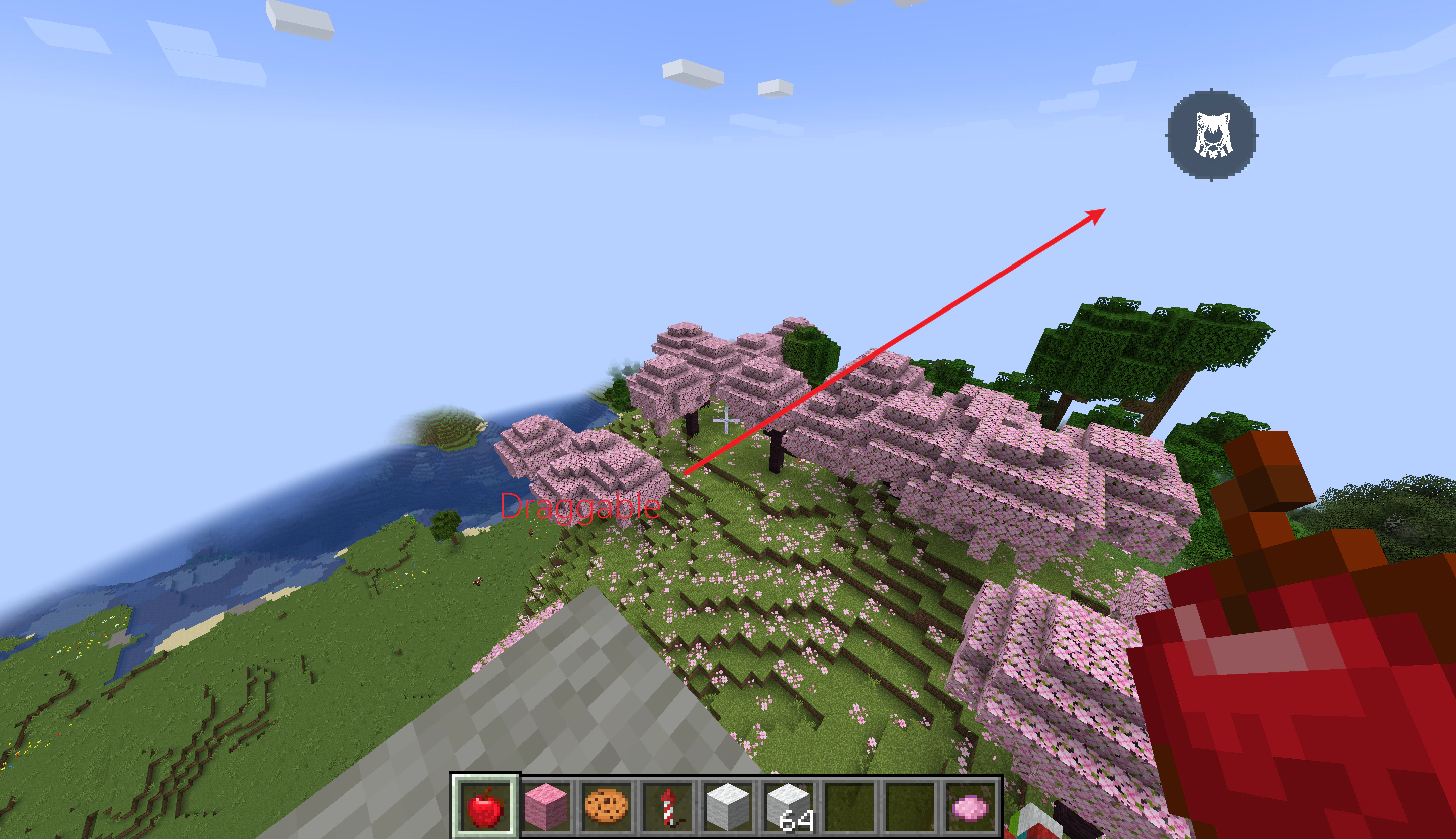
The AssistiveTouch orb when idle
Enable GUI is turned on in the config screen (Mod Menu -> MineClawd -> Configure).
Overlay layout
The expanded overlay has three parts:- Header bar — shows the current mode (Response, Sessions, or Assets), the active soul name, and status indicators like “Streaming” or “Question”. Three buttons sit on the right: a menu icon, a minimize button, and a close button.
- Content area — displays conversation history, session list, or asset inventory depending on the active mode.
- Input bar — a text field where you type requests, with a Send button that becomes a Stop button during generation.
Sending a request
Type your request in the input bar at the bottom of the overlay and click Send (or press Enter). This works exactly like/mclawd <request> but without opening the chat box.
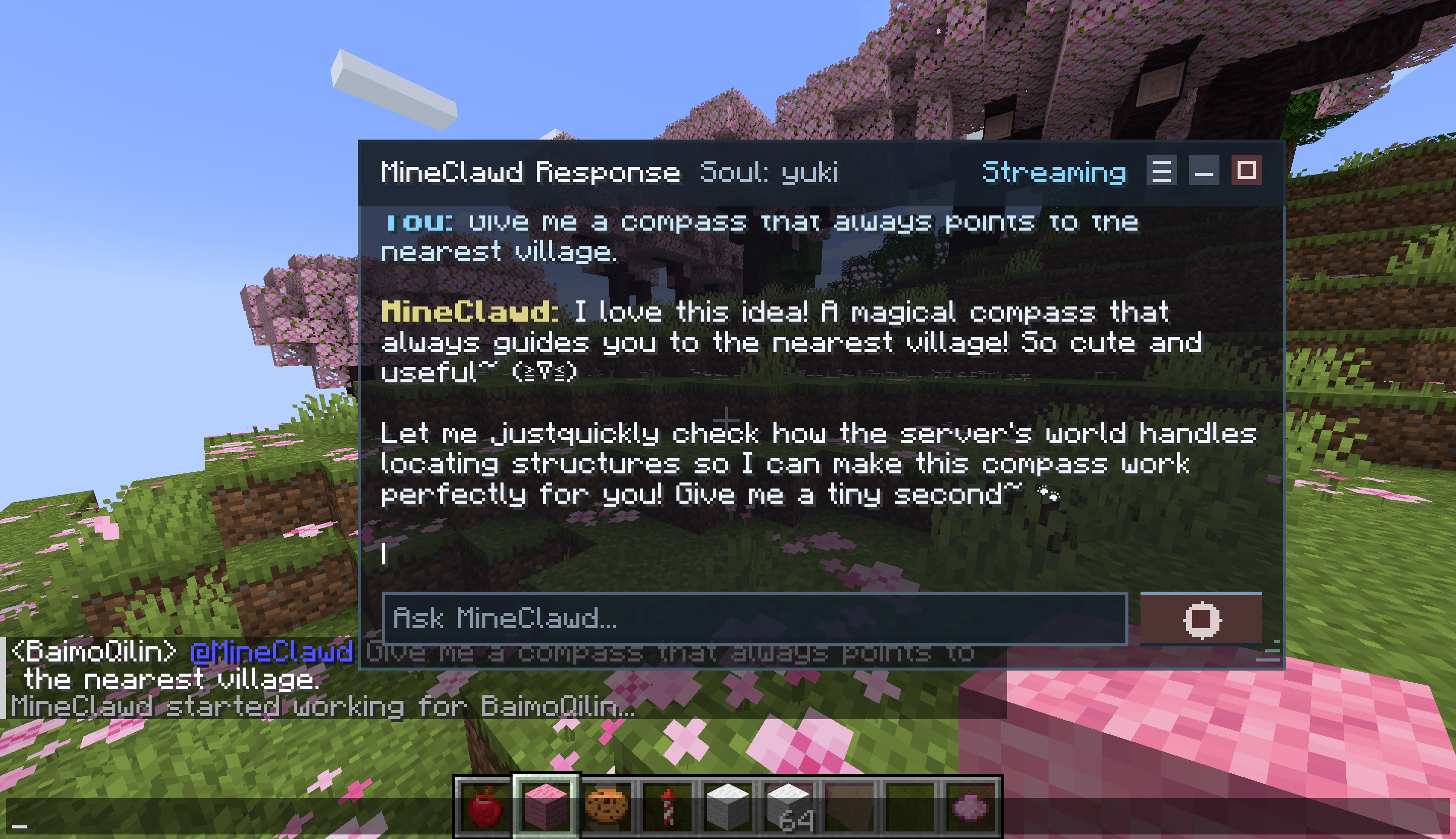
MineClawd streaming a response in real time
- A blinking cursor follows the latest text.
- The header shows Streaming status.
- An animated tool status indicator appears when MineClawd calls a tool, showing the tool name in real time.
- The Send button becomes a Stop button. Click it to cancel the active request (same as
/mineclawd stop). - The AssistiveTouch orb shows a pulsing dot when the overlay is minimized.
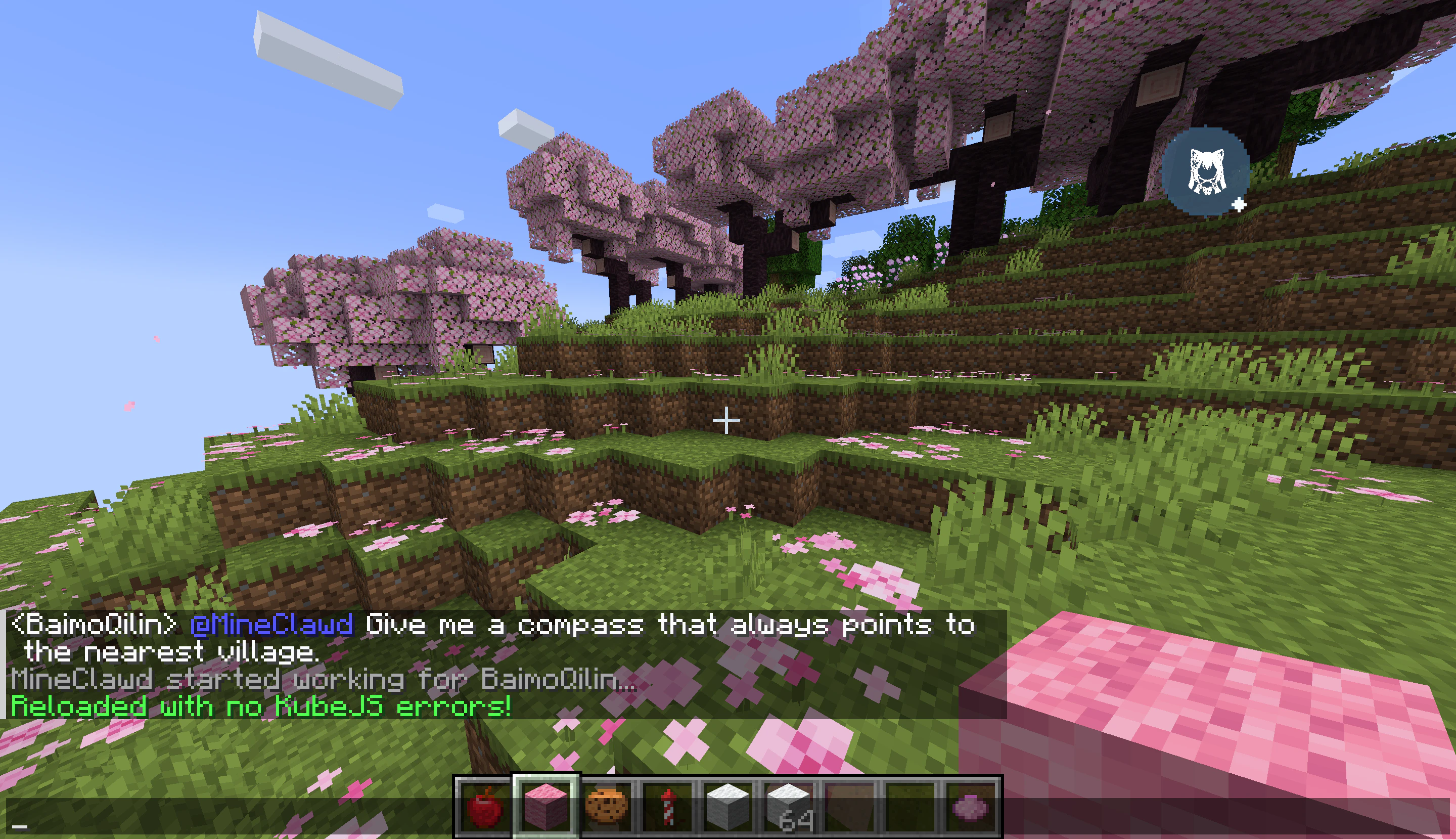
The orb pulses while a request is running
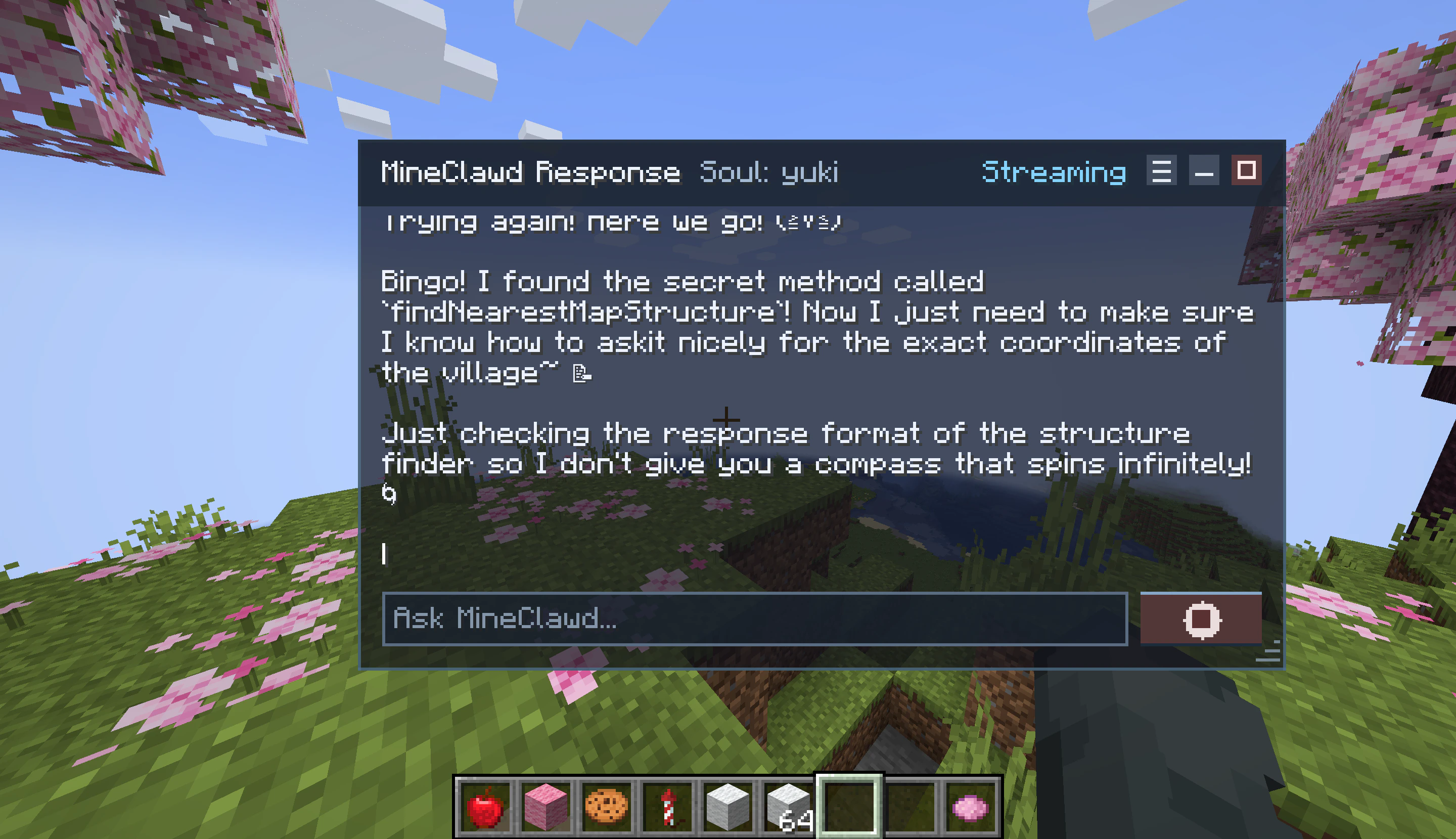
Another example of a multi-step generation in progress
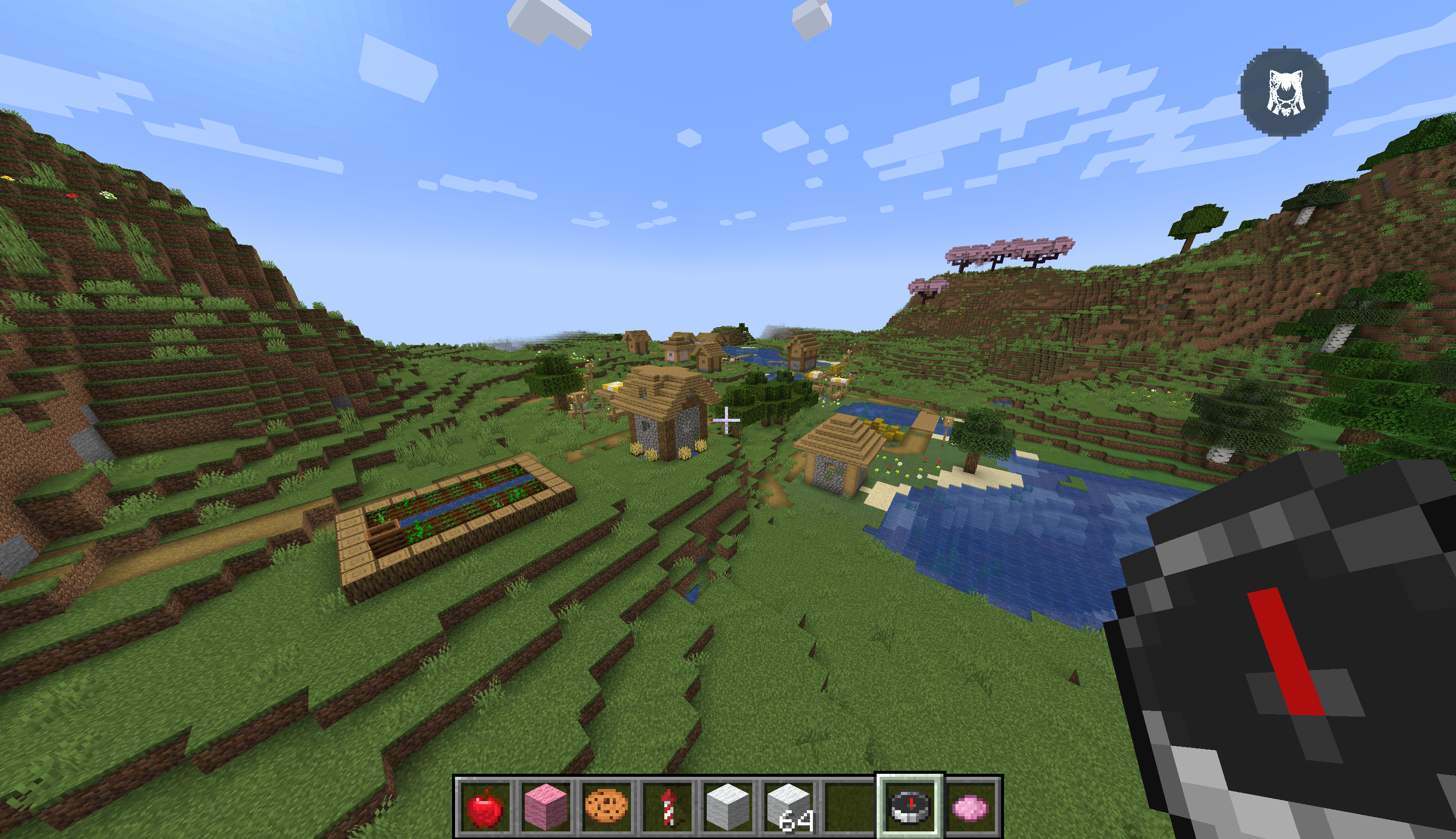
The completed result from the request above
Message display
Messages are color-coded for readability:- You: messages appear in blue tones.
- MineClawd: messages appear in gold/white tones, with one prefix per assistant turn even when tool calls split the response.
ask-user-question), option buttons appear inline with a built-in Other option. Pick an option, type a custom answer via Other, or click Skip to let the countdown expire.
Using the menu
Click the hamburger icon in the header to open the menu dropdown. It has four entries:Managing sessions from the overlay
Click Sessions in the menu to see all saved sessions in a scrollable list.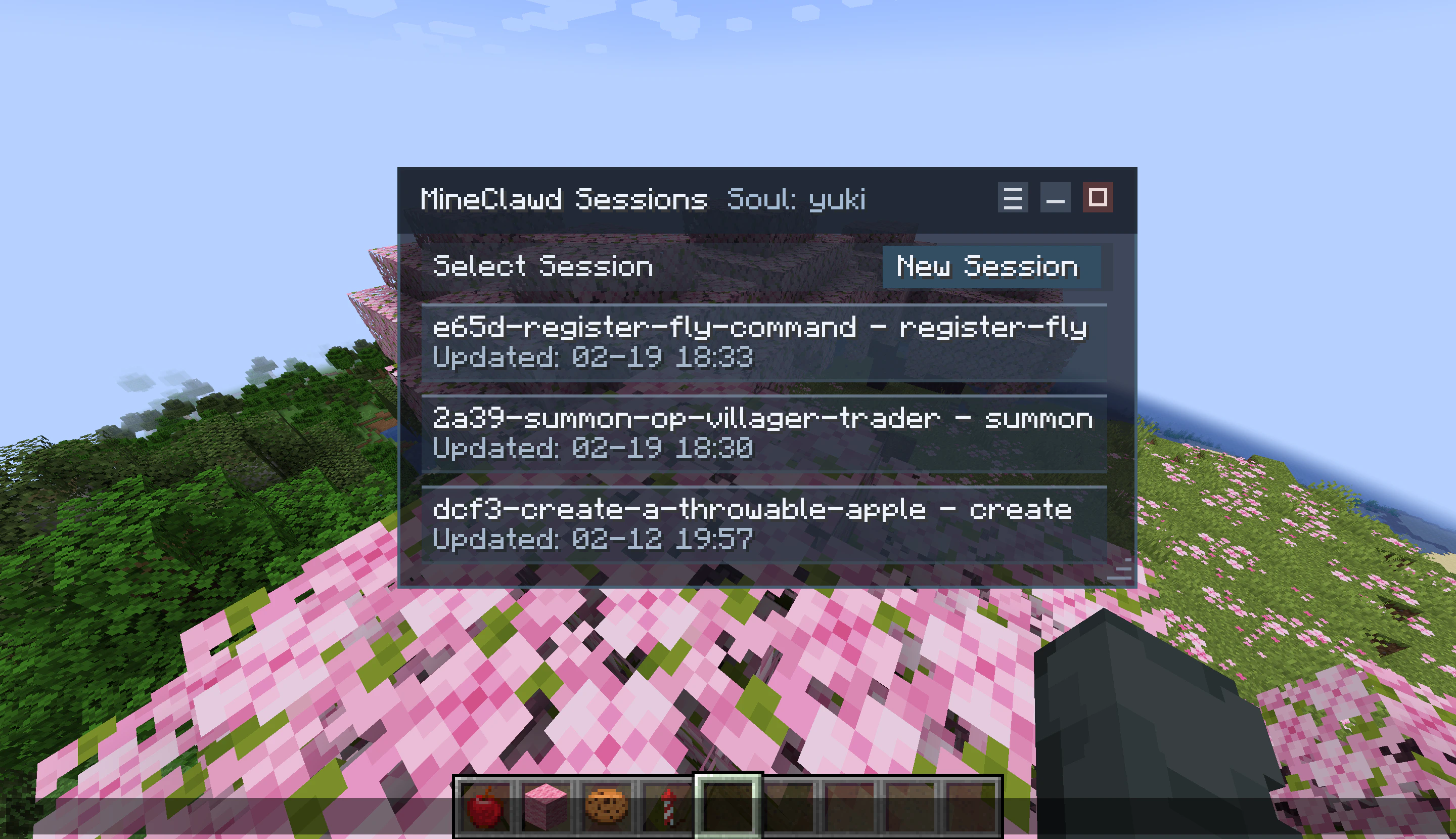
Session list in the overlay
- Click New Session to create and switch to a fresh session.
- Click any session row to switch to it. The active session is highlighted.
- View session titles and last-updated timestamps at a glance.
Browsing assets
Click Assets in the menu to open the asset inventory. See tracking assets for a full walkthrough.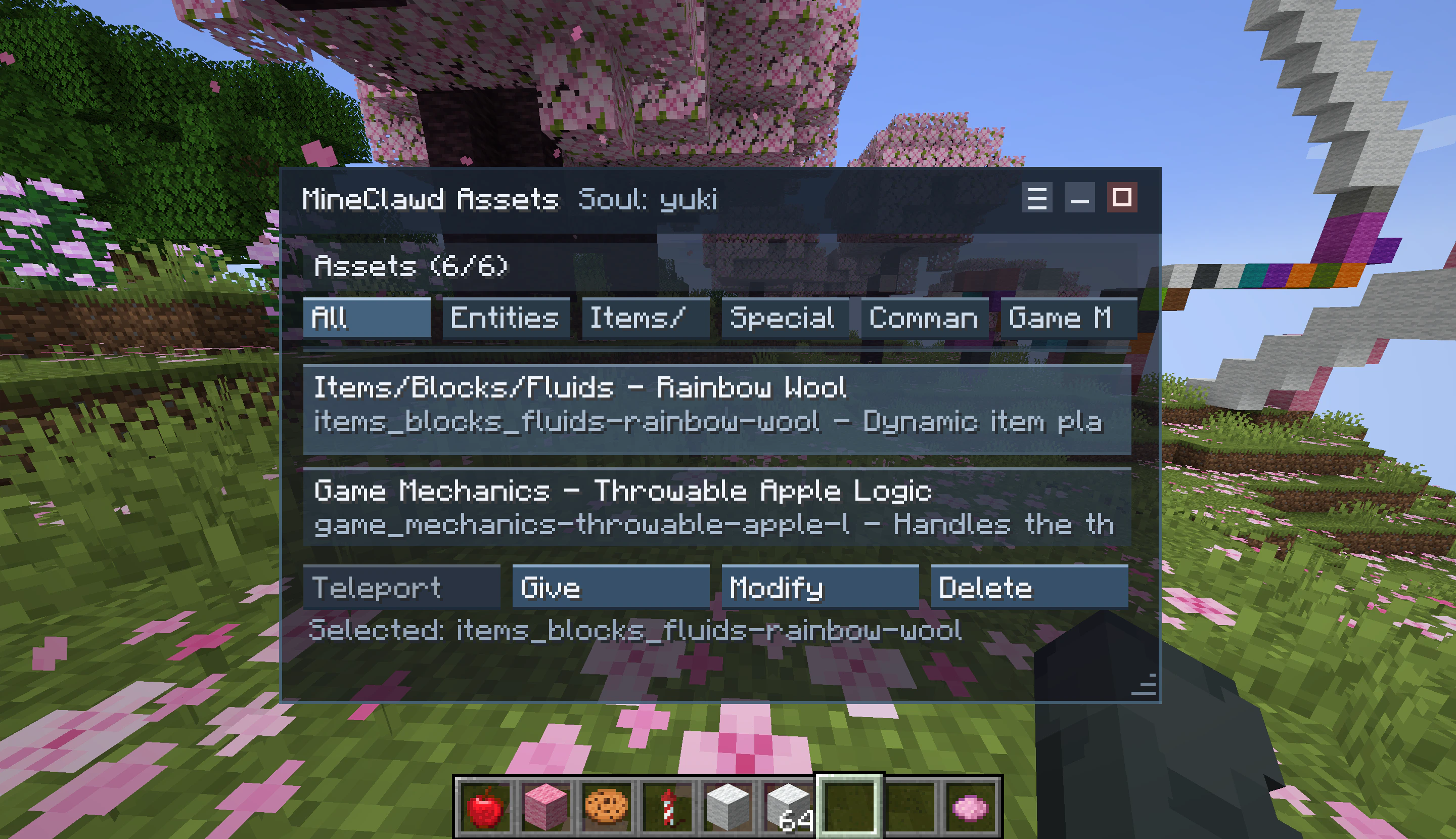
Asset inventory with category tabs and action buttons
Minimizing and restoring
Click the minimize button (dash icon) in the header to collapse the overlay back to the AssistiveTouch orb. Click the orb to restore it. You can drag the orb to reposition it. Your orb placement persists for the session.Input isolation
While the overlay is expanded, keyboard and mouse input is captured by the overlay. Typing, scrolling, and clicking do not bleed through to chat, inventory, or other screens. Standard text editing works in the input bar: Ctrl+A (select all), Ctrl+C (copy), Ctrl+X (cut), Ctrl+V (paste), Home, End, and Ctrl+arrow for word jumps.Disabling the GUI
If you prefer chat-only interaction, disable the overlay in config:- Open Mod Menu -> MineClawd -> Configure.
- Set Enable GUI to OFF.
- Save.